|
Meta's settlement could force its biggest competitors to reshape their apps.
|
|
 Meta today said it will implement major changes to Facebook and Instagram's child safety features as part of a settlement agreement with almost all U.S. states. Meta today said it will implement major changes to Facebook and Instagram's child safety features as part of a settlement agreement with almost all U.S. states.
|
|
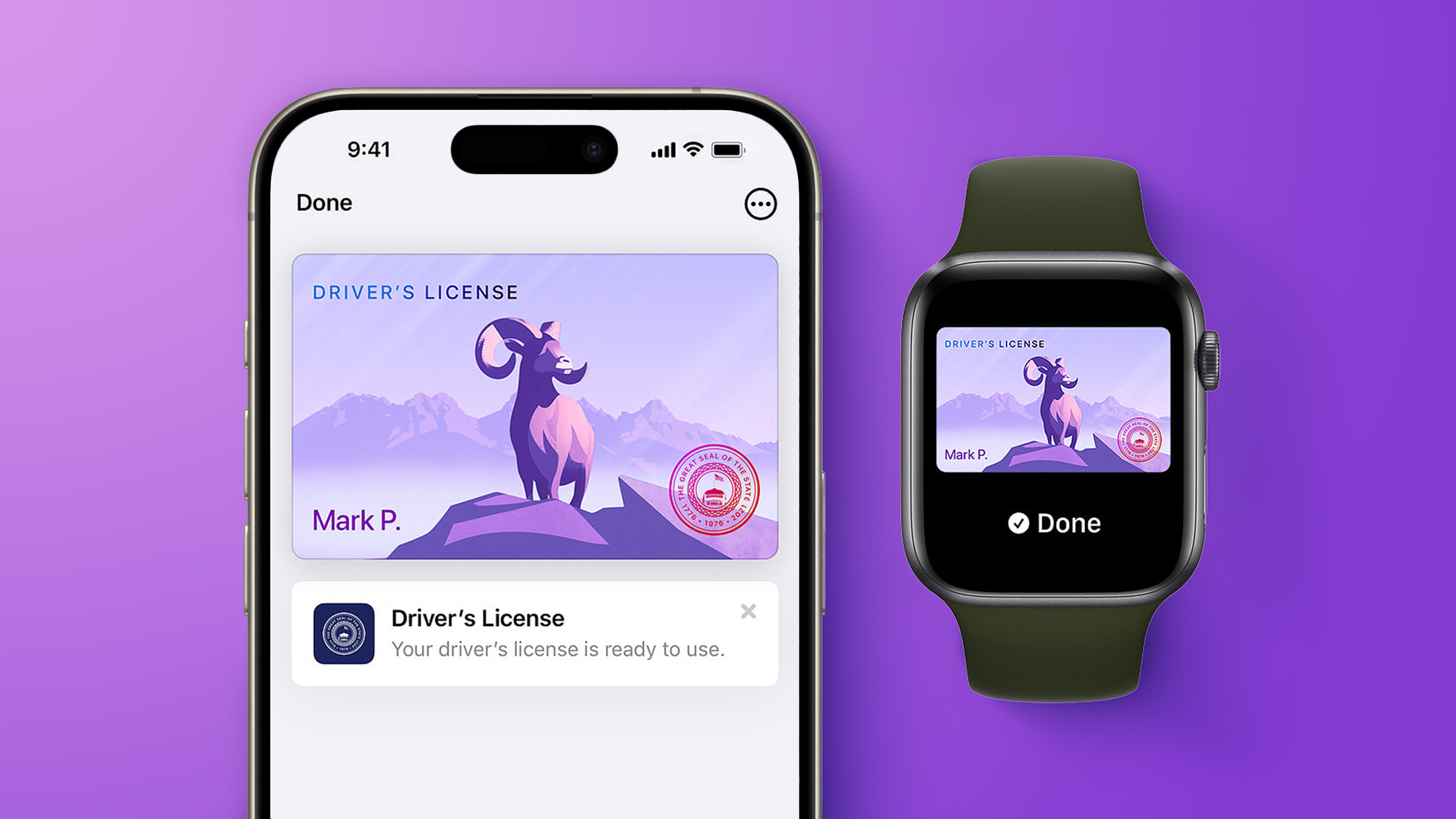 Starting today, Virginia residents can add a digital version of their driver's license to the Apple Wallet app on the iPhone and Apple Watch. The digital ID can be used to display proof of identity or age at TSA checkpoints in select airports, at select businesses, and in select apps, but the number of places where it is accepted is still quite limited. Starting today, Virginia residents can add a digital version of their driver's license to the Apple Wallet app on the iPhone and Apple Watch. The digital ID can be used to display proof of identity or age at TSA checkpoints in select airports, at select businesses, and in select apps, but the number of places where it is accepted is still quite limited.
|
|
Traditional operating systems (OS) were built to manage hardware, files, apps, and users on a device, but Cloudflare says the agentic AI era requires a whole new format.
The company this week announced Cloudflare OS, which connects AI agents, enterprise data and context, internal systems, and workflows together in one secure workspace. It is open source and browser-based, sparing companies the need to build all-new infrastructure.
The OS is launching alongside several other new security, identity, spending, and user insight tools that Cloudflare has built for the AI-based workplace.
"Cloudflare OS isn't a traditional desktop OS," said Rita Kozlov, VP of product at Cloudflare. "It reimagines the workplace computing environment for AI."
Open source OS runs in a browser
Cloudflare OS serves as a secure, AI-equipped workspace that is plugged into internal company systems. Available now through Cloudflare's open source repository, it is accessible directly in a browser, and runs inside an enterprise's Cloudflare account.
|
|
Because of these limitations, I use ShareX instead for more complicated or precise screen captures. As well as capturing GIFs, ShareX offers significantly more advanced features, including precise capture with a magnifier, scrolling screenshot capture, and timed capture. ShareX even lets you add annotations like arrows, lines, and text bubbles to screenshots. And another great thing… it's totally free!
Here I'll show you how to use the highly coveted GIF recording function.
What to do:
Download, install, and run ShareX.
Type Ctrl Shift Print Screen. A crosshair will appear on your screen.
Now select the part of your screen you want to record a GIF with by moving the crosshair over it—it will automatically select the window or area surrounding your cursor. Click your mouse to begin recording.
To stop recording you can either type the shortcut again (Ctrl Shift Print Screen) or hit the stop button in the ShareX media control bar.
|
|